How to Install Sims 4 Mods and Custom Content
If you know how to install The Sims 4 mods, you can control all aspects of your sims' lives. Other types of Sims 4 custom content include player-created lots and scripts that add extra features like new traits, careers, and sim animations.
Instructions in this article apply to TheSims 4 for PC and Mac. Mods and custom content are not available for the console versions of The Sims 4.
How to Get Custom Content for Sims 4
You can download mods, scripts, and other custom content for The Sims 4 from various websites such as The Sims Catalog and Mod the Sims. Custom content usually comes in a compressed format such as ZIP or RAR files, which you must extract and move to specific folders in the Sims 4 game files. The mods themselves have different extensions including .package, .ts4script, .bpi, .blueprint, and .trayitem.
Custom content can be accessed in various ways. For example, general modding tools like MC Command Center allow you to edit all game variables down to dictating the behavior of individual sims. Whenever you click an object, you'll see the MC Command Center option listed.
How to Add Mods to Sims 4
Before you install mods for The Sims 4, you should download the latest updates and patches:
Launch the Origin digital store and select Game Library.
Right-click The Sims 4 and select Update game.
Launch the game and select the Options Menu icon in the top-right corner.
Select Game Options.
Select the Other tab on the left side of the Game Options window.
Select the boxes beside Enable Custom Content and Mods and Script Mods Allowed.
You can come back to this menu at any time and select View Custom Content to view the mods you have installed.
Select the checkmark to acknowledge the warning about using mods.
Select Apply Changes and close the game.
You will need to repeat steps each time a new patch is released.
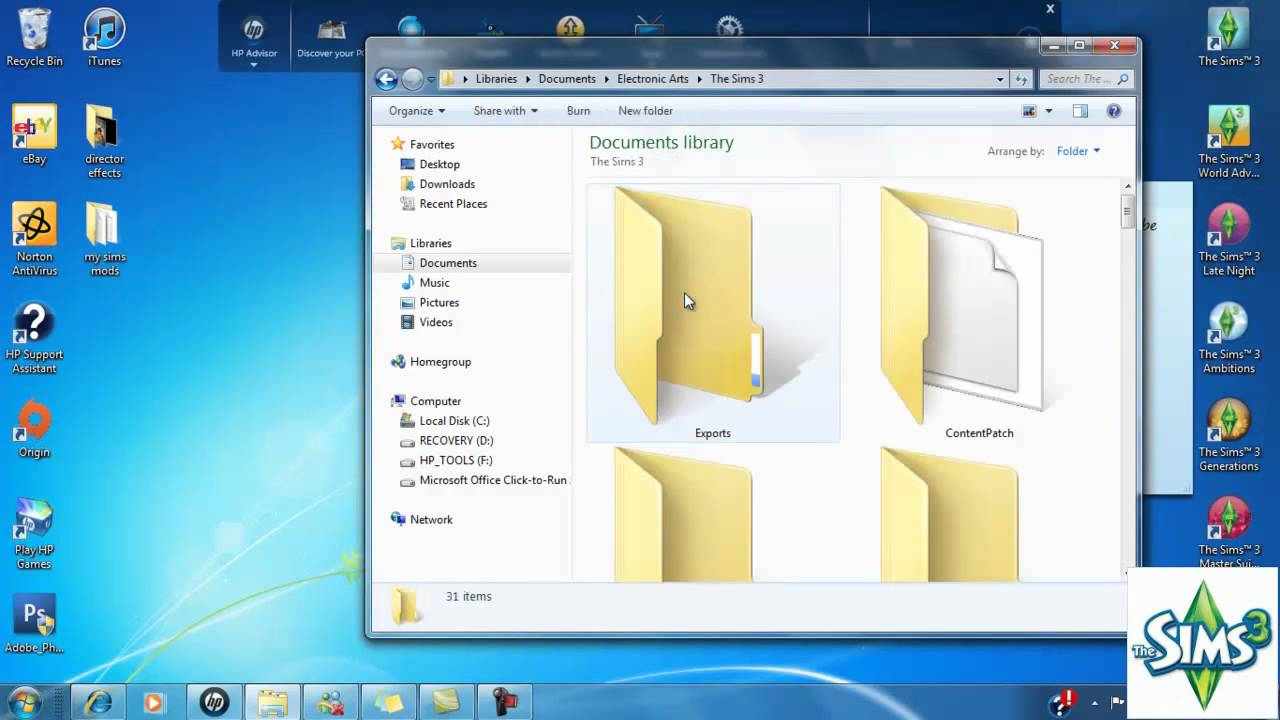
Open the TheSims 4 game folder on you computer (it saves to Documents > Electronic Arts > The Sims 4 by default), then open the folder containing your custom content in a separate window. Drag-and-drop all .package or .ts4script files into the Mods folder, and move files ending in other extensions into the Tray folder.
The custom content will be available the next time you start the game. To remove custom content, delete the files from the Mods and Tray folders.
Before deleting any files, make a backup copy of the Save folder within the Sims 4 folder first in case somethings goes wrong.
How to Use Custom Lots in Sims 4
Custom lots must be stored in the Tray folder within the The Sims 4 folder. To view your custom lots:
Launch The Sims 4 and select the Gallery icon in the top-right corner.
Select My Library at the top.
Select Include Custom Content in the left pane.
Select your custom lot to view its details.
How to Use Custom Objects
To use custom objects in Build Mode:
Select Build Mode at the top of the screen, or press F2.
Select the Objects by Function tab.
Select Filter Items.
Select Content > Custom Content to see your custom objects listed.
Troubleshooting Sims 4 Mods Installation Issue
If a mod isn't working, or if you experience problems after installing custom content, try the following:
Check that custom content files are in the correct folders. Only files ending in .package or .ts4script go in the Mods folder. Store files ending in .bpi, .blueprint, or .trayitem in the Tray folder instead. Files ending in .zip or .rar will not work.
Check that custom content is enabled in your game settings. Also, make sure you choose the option to display custom lots and objects.
See if there are any new updates available for your mods. The Sims VIP website has a list of broken mods.

-
-
-